
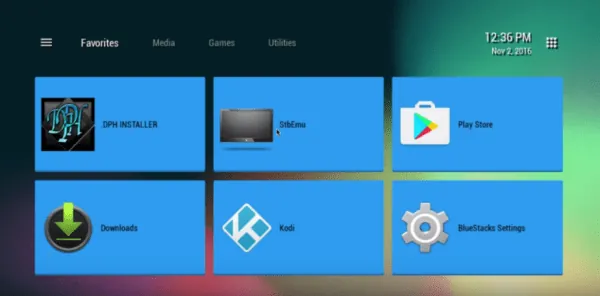
This App is intended to be used by expert users. To operate accurately it needs to be configured first and if you’ve never configured IPTV boxes it may be confusing for you to configure it. Please note, by making a simple mistake during your configuration, the App will become unusable. In this tutorial, we are going to show you how to use STB emulator on your device in order to watch IPTV.
Set-top boxes are an excellent way to enjoy your IPTV services. If you don’t want to purchase a Mag Set-top box like the model 254 then you can use an Android machine to imitate the hardware and interface of a Mag box. Joined by an STB Remote App for your Android smartphone, you can have the same modern set-top box IPTV experience. Please note, you will need a powerful device to use this emulator.
The Android STB Emulator can imitate the following IPTV set-top boxes.
| MAG 200 | |
| MAG 245 | |
| MAG 250 | |
| MAG 260 | |
| MAG 270 | |
| MAG 275 |
Step 1: You need to download STB emulator App from the Play Store via the link below and proceed to the next step after installing the app.
https://play.google.com/store/apps/details?id=com.mvas.stb.emu.free&hl=en
Step 2: On the top right corner select “Settings”
Step 3: Select “Profile”.
Step 4: Select “New profile”.
Step 5: Select “STB Configuration”.
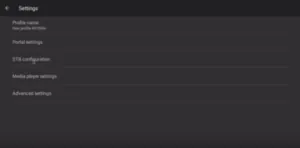
Step 6: Enter your MAC address.
Find your MAC address. You will need this number to tie your device to your subscription.
- Turn on your device and open the Application.
- In the main menu select System and then system info.
- Select the network tab.
- Write down the last 6 characters of your MAC address (For example: If your MAC address is”2A:B3:35:03:E7:36″ then you should write down 03:E7:36)
- How to link your MAC address to your Subscription.
- Login to your panel.
- Click on the change IPTV MAC address button.
- In the text field enter 00:1A:79: followed by the last six characters of your MAC address (For example 00:1A:79:03:E7:36)
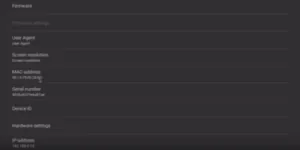
Step 7: Head back and select “Portal settings” and click on “Portal URL” and enter the Portal address provided by COBRA IPTV.
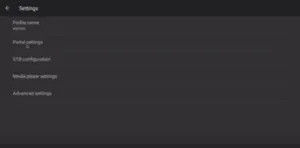
Step 8: Head back and select “Save and restore settings”.
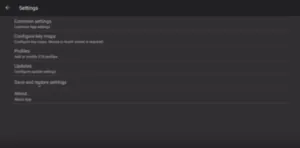
Step 9: Select “SAVE SETTINGS AND PROFILES”.
In the end, restart your device and the portal will start to load.
You have finished setting up an Android device to imitate an IPTV set-top box. Now you have a set-top box experience without purchasing a Mag box. The STB emulator can be a bit challenging to use so if you notice any errors try exiting and restarting the App, or removing the App and installing it again.
