
Are you frustrated by the limited services of the cable system on your Samsung Smart TV? Are you frustrated by the non-suitable timings of shows on the TV? Get ready to learn about a reliable solution for that. All you have to do is set up IPTV on your device. Today we’ll discuss how to enable IPTV on Samsung Smart TV.
Before proceeding further in this article, let’s know more about IPTV and how it can be beneficial for you. First of all, IPTV stands for Internet Protocol Television which is a modern digital service for streaming channels by using the internet. This is now available for Windows, Android, iOS, Mac, Xbox, Roku, PlayStation and many more. It is different from conventional cable systems in having the ability to record your TV show or any other content. This recorded content will be backed up on their servers and you have full access to them at any time, any place. You are now able to watch any channel of your interest and deselect those which you don’t want to stream. For obtaining these services, you have to take a monthly or yearly subscription by registering on their official website. Extra screens need our Multiple Connections plan. Now coming to the process of IPTV installation and subscription which is given below for Samsung Smart TV, stay connected till then.
How to Install and Set Up IPTV on Samsung Smart TV
As you can see, this IPTV service is becoming quite popular now. In a couple of years from now, it would probably substitute the traditional cable system completely. So, there are many apps available in the market to set up IPTV on Samsung Smart TV. One of those popular apps is Smart IPTV and we’ll learn the process by using this app only. For learning this, you have to follow the step-wise guide given below:
- Start your Samsung Smart TV and connect it through a suitable internet connection using Wi-Fi or through the ethernet cable.
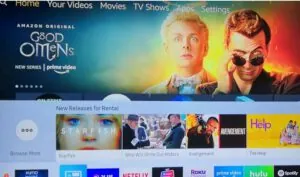
- Now, open the search bar by pressing the home button from the remote to search Smart IPTV.
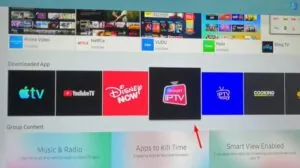
- You’ll see the app with its general recognizable logo on the screen and you have to Install it for proceeding further.
- After installing this app, you have to go through some steps to set up the IPTV channels on your Samsung Smart TV.
- After this, launch the Smart IPTV app and a new window will appear on the screen. On that screen, you’ll find a TV MAC address and make sure to note it down somewhere carefully.
- Now, using your mobile phone or PC, visit this link siptv.eu/mylist using a suitable browser.
- On this page, enter the noted TV MAC address carefully in the required filling box. In the URL box, enter the Smart IPTV Playlist URL that COBRA IPTV provides you.
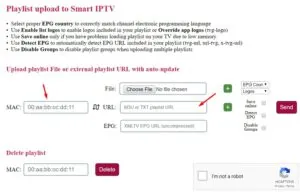
- After performing all these steps, recheck the entered content and then press the Send
- After that, you’ll see a message at the bottom of your browser window saying- 1 URL added! Restart your App
- Now, go to the IPTV app on your Samsung Smart TV and close the app using the Exit button from your TV remote.
- After that, restart the Smart IPTV App from the Apps section on the TV screen.
- All IPTV channels will now load and will be ready to watch after a couple of minutes.
Congratulations! You have successfully enabled IPTV on Samsung Smart TV. Go ahead and enjoy its wonderful services.
After knowing about all the features and advantages of IPTV on your system you will probably want to set up IPTV on your Smart TV right away. Its reliable features are the main reason for its adoption by people all over the world, and this service will definitely benefit you.
